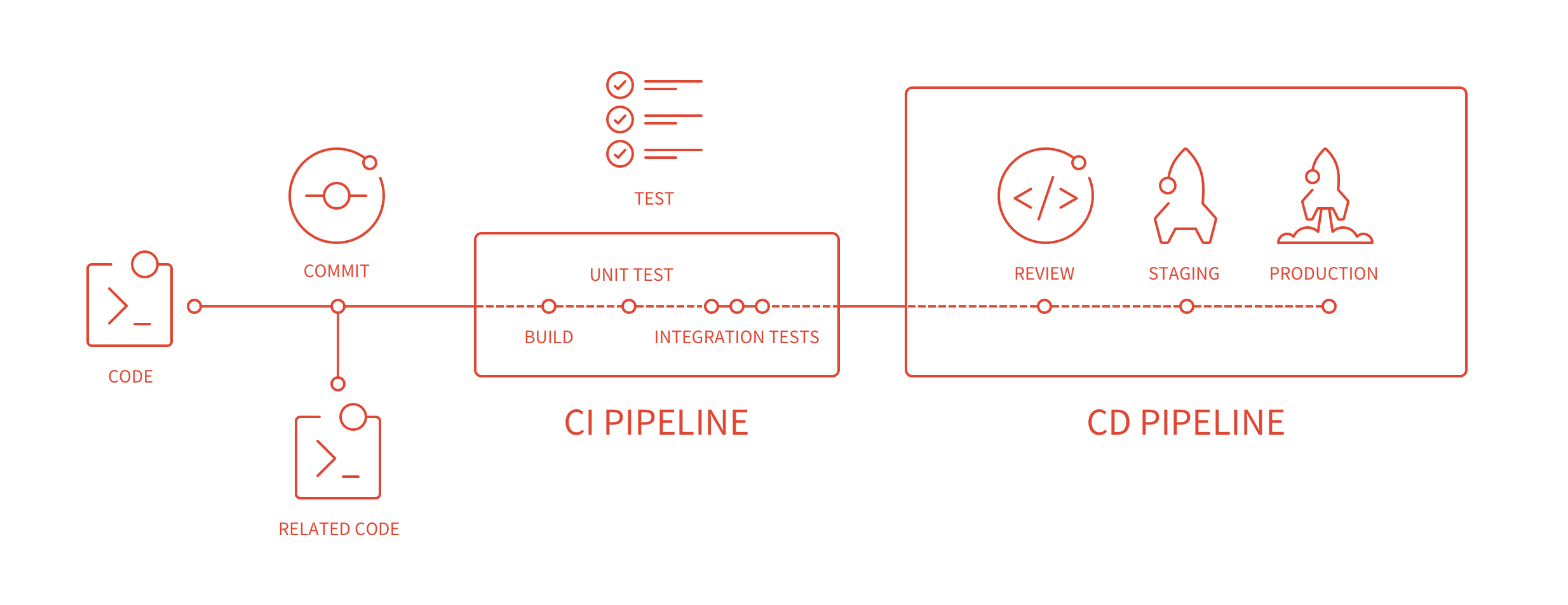
I love Heroku and I love Gitlab. Both of them offer so much for free, which comes in handy when you’re just testing applications. What I love even more is the Gitlab’s Continuous Integration (GitLab CI/CD). Its just amazing, what you can do with it!
For the sake of simplicity, we will use a simple application made with PHP, which is hosted on Gitlab. We need to perform some steps on both sides to deploy on Heroku using Gitlab’s Continuous Integration. First of all we will setup the Heroku app and then Gitlab.
Heroku App
- Login to your heroku account.
- Create a new app.

- Go to app settings and install
heroku/phpbuildpack. - Go to your account settings.

- Copy the API Key.
Gitlab
Our Gitlab repository will host the code of our application and also the .gitlab-ci.yml configuration file for continuous integration.
- Create a new git repository/project on Gitlab.
- Go to setting of the project and then to CI/CD.
- There you will see a section named Variables. Click on Expand.

- Enter your API key from the heroku account. Name the key as
HEROKU_API_KEYand paste the value. - Set as protected.
PHP Application
Our PHP application will be a simple helloworld app. For that create a simple application with two files:
index.php
<!DOCTYPE html>
<html>
<body>

<?php
echo "Hello World!";
?>

</body>
</html>
composer.json
The composer file can be empty braces.
{}.gitlab-ci.yml
This is the magic file which lets us deploy our code or run test, or run scripts. You can read about it in detail here.
Following are the contents of out simple .gitlab-ci.yml file:
heroku:
 stage: deploy
 only:
 - master
 script:
 - git remote add heroku https://heroku:$HEROKU_API_KEY@git.heroku.com/<Your heroku app name>.git
 - git push -f heroku master
In this file we create a new job to push our code to heroku using the API key and we only push the master branch, you can change to any other branch.
This is it!

Place all the files in a folder, commit and push your code to Gitlab. Once you commit, you can view it in Pipelines section in your project. If you have done everything properly, then the build will be passed and you will be able to see your application running on Heroku. Goodluck :)
Buy me a cup of coffee with ETH: 0x681a83007bC52C0bF42B41263Dc498f9Ef7af02A
Discussion
Comments are not enabled on this build. Production uses Giscus (GitHub Discussions) when the repository secrets are set.